

If you're relying on LinkedIn's main search bar to find prospects, you're essentially trying to find a needle in a haystack of over a billion professionals. It just doesn't work.
An advanced search on LinkedIn is the key to turning that haystack into a highly specific, curated list of people you actually want to talk to. It's about using a smart combination of filters and Boolean logic to transform a massive network into a predictable lead-generation machine.
Moving Beyond the Basic LinkedIn Search Bar
For anyone serious about B2B, the standard search bar is a dead end. It spits out broad, often useless results that force you to spend hours manually sifting through profiles. That’s a terrible use of time and simply doesn't scale if you're in sales, marketing, or recruiting.
The real power comes from layering specific criteria to build your Ideal Customer Profile (ICP) right inside the platform. Forget just searching for a "Marketing Director."
An advanced search lets you find a "Marketing Director" in the SaaS industry, at a company with 51-200 employees, located in the United States, who has posted about "AI in marketing" in the last 30 days. That's the difference between hoping for a lead and strategically building a pipeline.
The Limitations of a Free Account
You have to understand the massive gap between what a free account can do versus a premium one like Sales Navigator. While advanced search has completely changed the game for sales pros, the free version is designed to hold you back.
Free accounts only let you see the first 100 profiles for any given search. On top of that, you’re capped at 1000 searches per month. This means thousands of your best potential leads are completely hidden from you.
That "commercial use limit" is a serious barrier. When your perfect prospect is on page 11 of the search results, a free account makes them invisible.
For anyone whose job depends on booking qualified meetings, hitting these limits isn't a possibility—it's an inevitability. Upgrading isn't just about bells and whistles; it's about removing the roadblocks to hitting your revenue goals.
Free Vs Premium Search Capabilities At a Glance
The jump from a free to a premium account fundamentally changes how you prospect on LinkedIn. It shifts your entire approach from casual networking to a systematic, data-driven outreach operation.
Here’s a quick breakdown of what that really looks like in practice.
| Feature | Free LinkedIn Account | Premium Account (Sales Navigator) |
|---|---|---|
| Search Filters | Basic stuff: connections, location, current company. | Over 40 advanced filters like company size, seniority level, and years of experience. |
| Result Visibility | Capped at the first 100 profiles per search. | Unlocks all search results, giving you access to the entire pool of matching profiles. |
| Lead Management | No built-in tools to save or organize leads. | Lets you save leads and accounts into custom lists and get alerts on their activity. |
Mastering these powerful search tools is the first real step in building a robust LinkedIn lead generation strategy that actually delivers consistent results.
Building Precise Queries with Boolean Operators

Think of LinkedIn's filters as the frame for your search. If that's the case, then Boolean operators are the fine-art tools you use to paint a crystal-clear picture of your ideal prospect.
Honestly, mastering these simple commands is the fastest way to slash the noise and force LinkedIn to show you exactly who you’re looking for. Without them, you’re just making an educated guess.
A Boolean search just uses a few key text commands—AND, OR, NOT, parentheses (), and quotation marks ""—to combine or exclude keywords in your search. It’s the native language of the search algorithm, and speaking it lets you build surgically precise queries.
Let’s get into how each one works with some real-world B2B scenarios.
Using Quotation Marks for Exact Phrases
First up, the simplest and most crucial operator: quotation marks.
When you type Marketing Director into the search bar, LinkedIn’s algorithm gets a little too creative. It might show you profiles with "Marketing" in the headline and "Director" listed somewhere in their skills. Not what you wanted.
To stop that from happening, you have to wrap exact phrases in quotes.
- Sloppy Search:
Marketing Director - Precise Search:
"Marketing Director"
This one tiny change forces LinkedIn to only show you people with that exact job title. It instantly cleans up a massive amount of irrelevant results and is a non-negotiable first step for any serious advanced search on LinkedIn.
Combining Keywords with AND
The AND operator (always in ALL CAPS) is your tool for narrowing things down. It tells LinkedIn that every single one of your keywords must be present in a profile.
Let's say you sell a project management tool built for creative agencies. You don't just need a "Project Manager"; you need one who lives and breathes the creative world.
- Example Query:
"Project Manager" AND "Creative Agency"
This query only pulls up profiles that contain both the exact phrase "Project Manager" and the phrase "Creative Agency." In one move, you’ve just eliminated every PM from the tech, finance, and healthcare sectors.
Broadening Your Search with OR
On the flip side, the OR operator (also in CAPS) is all about expansion. It tells the algorithm to show profiles that have at least one of your specified keywords. It’s perfect when you're dealing with job titles that have a ton of variations.
A "VP of Sales" could easily be called a "Sales Director" or "Head of Sales." If you only search for one, you're missing out on a huge chunk of your target market.
- Example Query:
"VP of Sales" OR "Sales Director" OR "Head of Sales"
This casts a wider, yet still highly relevant, net by finding anyone holding one of those key decision-making titles.
Excluding Unwanted Results with NOT
The NOT operator is your delete button. It removes any profile containing a specific keyword you want to avoid. This is a lifesaver for filtering out junior roles, irrelevant industries, or even people who work for your competitors.
Imagine you're hunting for software engineers but want to skip the entry-level folks.
- Example Query:
"Software Engineer" NOT "Junior" NOT "Intern"
Boom. Your results are now focused on more experienced professionals, saving you the headache of manually sifting through profiles that aren't a good fit.
Grouping Complex Ideas with Parentheses
This is where you go from amateur to pro. Parentheses () let you group different operators together to build complex, multi-layered search strings. They work exactly like they do in a math equation, telling the search engine which part of your query to process first.
Let's tie our previous examples together into one powerhouse query. We're looking for a senior sales leader (with a few possible titles) and we specifically want to find them in the SaaS world.
- Example Query:
("VP of Sales" OR "Sales Director") AND "SaaS"
Here’s the magic behind that query:
- First, it finds a pool of people who have either "VP of Sales" OR "Sales Director" in their profile, because that part is grouped in parentheses.
- Then, it filters that pool of results down, only showing you the ones that AND also include the keyword "SaaS."
This kind of layered logic is the secret weapon for building hyper-targeted prospect lists right from the search bar.
Pro Tip: Always build your Boolean strings in a simple text editor (like Notepad or TextEdit) first. Don't type them directly into LinkedIn. This gives you a space to check for simple mistakes, like forgetting to capitalize an operator or messing up a parenthesis, before you hit search.
Layering Native LinkedIn Filters for Hyper-Targeting
Your Boolean string is the foundation, but the real magic happens when you start stacking LinkedIn's native filters on top. This is where a good advanced search on LinkedIn goes from a blunt instrument to a surgical tool.
Think of it like this: your Boolean query casts a wide net, pulling in all the right types of fish. The filters are how you sort them by size, weight, and color, making sure you only keep the exact ones you’re after. The trick is to apply these filters methodically, going from the broad stuff down to the nitty-gritty details.
When you do this right, you turn a simple search into an intelligence-gathering mission. You’re not just finding people; you’re building a live, dynamic list of prospects who perfectly match your Ideal Customer Profile, saving yourself countless hours of manual sifting later on.
Starting Broad and Narrowing Down
The best workflow I've found is to start with your Boolean query in the main search bar, then head over to the "All filters" panel to start whittling things down.
It's tempting to click every filter you think you need right away. Don't. Add them one by one and watch how each one changes your total result count. This slow-and-steady approach shows you exactly which filters have the biggest impact on finding your specific audience.
Let's walk through a real-world example. Imagine we're a B2B SaaS company selling marketing automation software to mid-sized tech companies in North America.
- Kick off with the Boolean Query: First, pop a query like
("Marketing Director" OR "Head of Marketing" OR "CMO") NOT "Assistant"into the main search bar. This gets us a big, but relevant, pool of decision-makers. - Stack the Core Filters: Now, click "All Filters" and start layering on the most critical criteria. I'd begin with Geography (United States, Canada), then add the Industry (Software Development, IT Services), and finish with Company Size (51-200, 201-500 employees).
With each filter you add, you’ll see the number of results drop, but the quality will shoot through the roof. This controlled process keeps you from accidentally cutting out great prospects by being too restrictive from the get-go.
Uncovering Hidden Gem Filters
Everyone uses filters like Title and Industry—they're the workhorses. But some of the most powerful filters are the ones most people ignore. These let you tap into subtle signals and shared histories, which are pure gold for writing outreach that actually gets a reply.
When you dig a little deeper into the filter options, you can find connection points that give you a unique "in" for that first message.
- Past Company: This filter is an absolute goldmine. You can find people who used to work at a company you admire, a current customer, or even a competitor. Dropping that shared connection in your message—"Saw you used to be at [Company Name], I've always been impressed by their work"—is an incredible way to build instant rapport.
- School: Looking for alumni from a specific university is a no-brainer. If you share an alma mater, it's an immediate, authentic connection that cuts through the noise of a typical sales pitch.
- Service Categories: This one is brilliant for finding consultants or freelancers offering specific services like "Marketing Consulting" or "Lead Generation." It’s super handy for finding potential partners or niche experts.
When you combine a solid Boolean query with a strategic stack of filters—both the obvious and the overlooked—you create a search that's far more powerful than the sum of its parts. You’re not just finding people with a certain title anymore. You’re identifying individuals with a specific background and professional DNA that lines up perfectly with what you offer. This is how you turn LinkedIn into a predictable pipeline-building machine.
Unlocking Exclusive Opportunities With Sales Navigator
Let’s be real. While Boolean operators and the standard filters give you a solid advantage, they’re still playing in the shallow end of the pool. If your business depends on building a predictable sales pipeline, Sales Navigator isn't just a nice-to-have—it's the only way to play the game seriously.
Think of it this way: Sales Navigator turns your prospecting from a manual, often frustrating grind into a smart, automated system. It’s packed with exclusive filters that shine a spotlight on opportunities you’d otherwise never see.
Accessing Game-Changing Filters
The real magic of Sales Navigator is in its advanced search filters. They give you a level of precision that makes a standard LinkedIn search feel like you're fumbling around in the dark. These aren't just minor tweaks; they let you zero in on prospects based on actual buying signals, company growth, and what they're talking about online right now.
A few of the heaviest hitters include:
-
Company Headcount Growth: This is huge. It lets you find companies that are actively hiring and expanding. A growing headcount is one of the clearest signs of a healthy budget, new projects, and a real need for solutions that can help them scale.
-
TeamLink Connections: This filter is your secret weapon for warm intros. It instantly shows you prospects who are already connected to your colleagues, giving you a clear path to a referral instead of a cold outreach. The response rate is night and day.
-
Posted Content Keywords: Imagine finding a decision-maker who just posted about the exact problem your service solves. This filter makes it possible. You can search for keywords within your prospects' recent posts, turning a random lead into a perfectly timed, relevant conversation.
These deep insights are what separate amateur and professional B2B marketers. Our guide on B2B LinkedIn marketing dives deeper into weaving these tactics into a full-blown strategy.
Here’s how this works in the real world:
Say you sell AI implementation services to tech startups. With Sales Navigator, you could build a ridiculously specific search like this:
- Keywords: "Chief Technology Officer" OR "VP of Engineering"
- Company Headcount Growth: Greater than 10%
- Industry: Computer Software
- Posted Content Keywords: "AI implementation" OR "machine learning"
Boom. In seconds, you get a curated list of senior tech leaders at fast-growing companies who are already talking about your solution. That’s the kind of targeting that closes deals.
Automating Your Lead Flow
Finding that perfect list of prospects is a great start, but what about the new people who fit your criteria next week or next month? This is where Sales Navigator really earns its keep with Saved Searches and Alerts.
You set up your hyper-targeted search just once and save it. From then on, Sales Navigator does the work for you, running in the background. You get an alert every time a new person or company matches your exact specs.
Suddenly, prospecting isn't something you have to block out hours for. It's an automated engine that consistently feeds you fresh, qualified leads. It’s basically like having a research assistant on your team 24/7.
In a sea of 1 billion members and 69 million company profiles, trying to find your ideal buyer without these tools is just noise. Basic searches don’t cut it. These exclusive filters are how you find the hidden gems. You can get more context from these powerful LinkedIn statistics on LearningRevolution.net.
Exclusive Sales Navigator Search Filters and Their Use Cases
To really drive home the value, let's look at a few more exclusive filters and how they translate into actual business opportunities—the kind you just can't find with a free account.
| Sales Navigator Filter | What It Does | Practical B2B Use Case |
|---|---|---|
| Years in Current Role | Finds people based on how long they've held their current position. | Target decision-makers who have been in their role for less than 1 year. They are often eager to make an impact and bring in new tools or vendors. |
| Seniority Level | Filters by specific levels like Owner, CXO, VP, Director, or Manager. | Isolate the true decision-makers (e.g., VPs and CXOs) and cut out the junior staff, ensuring your message lands with someone who can actually sign the check. |
| Company Type | Differentiates between Public, Private, Non-profit, and other organization types. | Focus your efforts on privately held companies. They often have faster, less bureaucratic buying processes compared to massive public corporations. |
| Recent Job Changes | Highlights individuals who have started a new position in the last 90 days. | Use this as the ultimate conversation starter. Congratulate them on the new gig before you pitch, making your outreach feel personal and perfectly timed. |
When it comes down to it, Sales Navigator is an investment in efficiency and precision. It takes you beyond just finding people with the right job title and helps you pinpoint the companies and individuals showing clear signs they're ready to buy. For any B2B team serious about growth, it’s a non-negotiable part of the modern sales toolkit.
From Search Results to Meaningful Conversations
Finding the perfect list of prospects using an advanced search on LinkedIn is a massive win, but let's be real—it's only half the game. A static list of names doesn't generate revenue. Meaningful conversations do.
This is where so many people drop the ball. They spend hours crafting the perfect search query, only to send a generic, copy-pasted connection request that lands with a thud and gets instantly ignored. The real magic happens when you bridge the gap between your search results and your first message with genuine, insightful personalization.
Scanning Profiles for Personalization Hooks
Before you even think about hitting that "Connect" button, your first move is a quick but thorough scan of each prospect's profile. You're not just there to confirm their job title; you're on the hunt for "personalization hooks"—those unique little details that let you craft a message that feels like it was written just for them.
This shouldn't take more than 60 seconds per profile. You're looking for quick, actionable intel.
- Recent Activity: Did they just post an article, share a strong opinion, or comment on a relevant topic? Referencing this shows you've actually paid attention. A simple, "Loved your recent post on AI in marketing…" is a killer opener.
- Shared Connections: The "Mutual Connections" feature is a goldmine. Dropping a name ("I see we both know Jane Doe from XYZ Corp") immediately builds a layer of trust and familiarity.
- Common Ground: Look for shared schools, past employers, or even volunteer experiences. These create an instant, authentic bond that cuts through the noise of generic sales pitches.
- Profile Banner and "About" Section: People often use their banner to showcase a passion project or a company value. The "About" section is where they tell their professional story in their own words. Both are fantastic sources for finding connection points that aren't so obvious.
Crafting Outreach That Stands Out
Once you’ve found your hook, you can build your outreach around it. The goal is to be relevant and respectful, not just transactional. A great connection request or InMail should be short, sweet, and lead with either value or that genuine point of connection you just found.
Pro Tip: Never, ever pitch in the initial connection request. The only goal of that first message is to get them to accept. Your message needs to be short, personalized, and focused on them, not you. Something as simple as, "Hi [Name], saw your comment on [Influencer]'s post about GTM strategy and it really resonated. Would love to connect and follow your insights," works wonders.
For marketers, using these hooks is especially critical. The ones who are already dominating B2B lead generation with LinkedIn Advanced Search—and about 40% rank it as their most effective channel—succeed because they use filters for hyper-targeted campaigns that feel personal. According to Backlinko, over 50% of US marketers are integrating LinkedIn into their strategies for this very reason.
This simple workflow within Sales Navigator is a powerful way to keep your pipeline full and relevant.
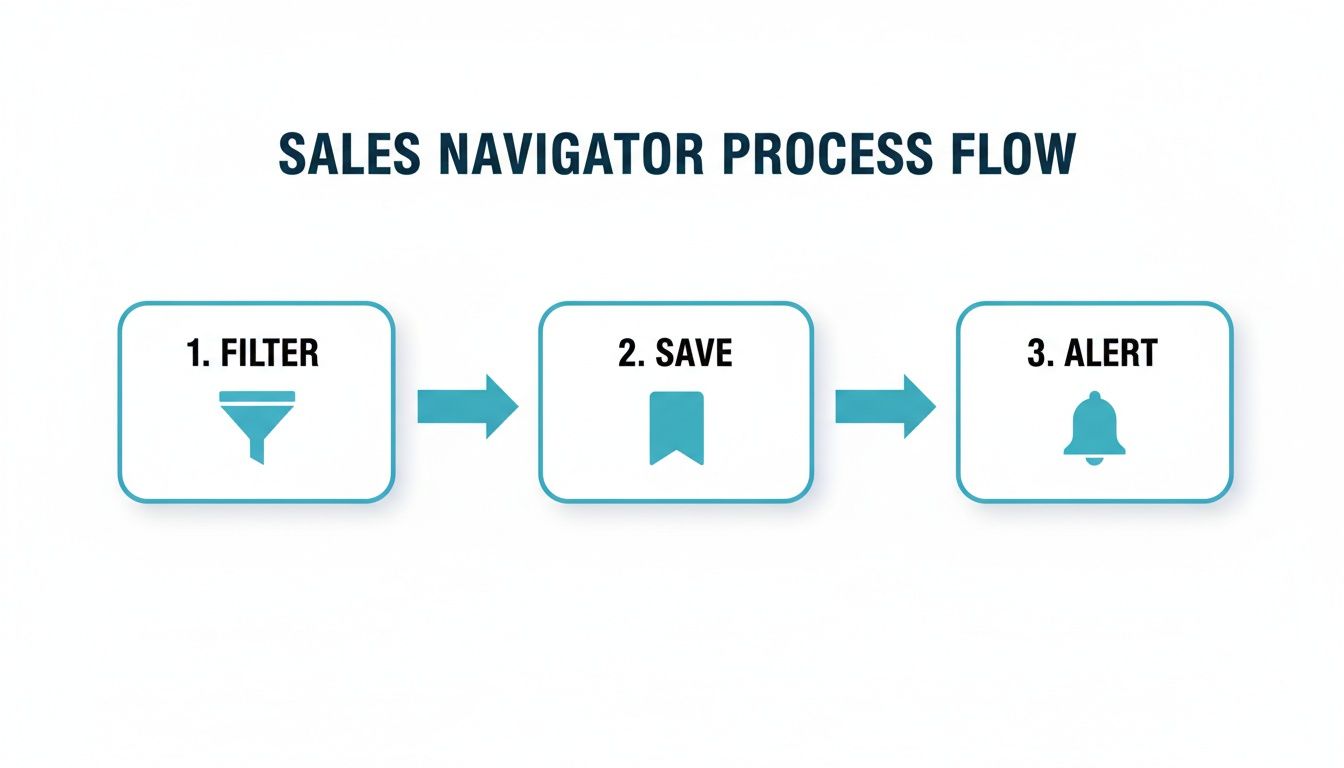
This process essentially automates your prospecting. You filter for your ideal profile, save those criteria, and get alerts when new leads match. It's a constant, low-effort flow of opportunities.
Building a System for Follow-Up and Integration
A great first touch is just the beginning. Without a system to manage your prospects, valuable leads are going to fall through the cracks. It's inevitable. The final piece of the puzzle is turning your static list into a dynamic pipeline by plugging it into your workflow.
If you're in Sales Navigator, create dedicated lead lists for each campaign or ICP. This keeps your outreach organized and lets you track engagement right inside the platform. You can add notes, set reminders, and monitor their activity for new reasons to reach out.
For a more robust system, you'll want to get these prospects into your CRM. While LinkedIn has restrictions on automated scraping, several third-party tools are built to compliantly export lead data from Sales Navigator into platforms like Salesforce or HubSpot. That’s how you build a systematic, multi-channel follow-up sequence.
Sometimes, the next logical step after connecting is to find their work email for a more direct line of communication. We've put together a guide on how to find someone's email from LinkedIn that covers some effective methods for this. By building an organized process, you make sure every high-value prospect you uncover gets the attention they deserve.
Got Questions About Advanced LinkedIn Search?
Even after you get the hang of it, running an advanced search on LinkedIn can throw a few curveballs your way. I see the same issues pop up time and time again.
Let's break down the most common ones so you can keep your prospecting sharp and effective.
Why Is My Boolean Search Not Working?
This is a classic headache, but trust me, 99% of the time it comes down to a simple syntax error. Before you throw your keyboard out the window, run through this quick checklist.
First, your operators—AND, OR, NOT—have to be in all caps. LinkedIn will completely ignore "and" or "or" if they're lowercase. It's a small detail, but it makes all the difference.
Next, you have to group your ideas together with parentheses (). For instance, (Sales OR Marketing) AND Director tells the search exactly what you mean. Without the parentheses, you’ll get a mess.
Finally, always wrap exact phrases in quotation marks "". If you’re looking for a "content marketing manager", using quotes will pull up people with that exact title. If you just type content marketing manager, you'll get profiles with those words sprinkled all over the place.
If a complex search still isn't working, you’ve probably hit the limits of the free version. Sales Navigator is built to handle much more complex queries.
Can I Find People Who Follow a Specific Company?
Short answer: no. There isn't a direct "followers" filter, which trips a lot of people up. But don't worry, there's a clever workaround for finding highly engaged prospects.
Just head over to your target company's page, click on their "Posts" tab, and see who is liking and commenting on their stuff. These aren't just followers; these are people actively raising their hand to show they're interested.
This tactic gets a serious upgrade in Sales Navigator. The 'Posted content keywords' filter lets you find people who are talking about topics related to that company. That’s a huge buying signal and a perfect opener for a conversation.
What's the Best Way to Save and Export My Search Results?
If you want to manage everything right inside LinkedIn, Sales Navigator is the undisputed king. You can build custom lead lists and set up 'Saved Searches' that actually send you alerts when new people match your criteria. It's like having an automated lead-gen machine running in the background.
Now, for exporting those lists into your CRM, things get a bit tricky. LinkedIn’s official policy is a firm no on automated scraping tools. However, there are a handful of reputable third-party browser extensions built to play nice with Sales Navigator for compliant exporting. Just be sure to do your homework on these tools to make sure they're in line with LinkedIn's latest user agreement.
How Many Search Results Can I See on a Free Account?
This is probably the biggest roadblock on a free LinkedIn account. You’re shackled by the commercial use limit, which means you can only see the first 100 profiles for any search. That’s it—just 10 pages.
Think about that. You could have the most perfectly crafted search query in the world but be completely blind to thousands of ideal prospects who are sitting on page 11 and beyond. The only way to break through that ceiling and see everyone who matches your search is to upgrade to a premium account like Sales Navigator.
Nailing your advanced search is just the first domino. To turn that list of high-quality leads into a predictable stream of qualified meetings, you need a killer content and outreach strategy to back it up.
Growlancer builds and runs this entire system for you, turning your leadership team's LinkedIn presence into a revenue-generating engine. See exactly how we do it at https://growlancer.ai.