

When you layer precise filters with Boolean terms, research time plummets and your pipeline fills faster. In practice, folding in granular criteria can cut your prospect discovery by 50% and boost qualified leads by 30% within four weeks.
Understanding Advanced Search LinkedIn Features

Back in the early 2010s, LinkedIn’s search was little more than a basic list. Today, Recruiter and Sales Navigator let you drill down by title, company size, location, seniority, skills—even previous employers. That shift turns a scattergun approach into pinpoint outreach.
Read the full research on measurable impact in this analysis of LinkedIn advanced search.
Layered filters benefit teams by:
- Pinpointing decision-makers by seniority and function
- Narrowing companies based on headcount, industry, and geography
- Targeting profiles with exact skills and past roles
One mid-sized SaaS team I consulted with cut their lead research time in half and saw a 30% jump in qualified conversations over just four weeks. On a platform-wide scale, 122 million members received interview requests and 35.5 million were hired via LinkedIn connections in recent years.
Filter Granularity Explained
Detailed filters are your secret weapon when you need a tight, high-fit list. For example, pairing “Marketing Director” with a company size of 51–200 employees instantly surfaces prospects primed for outreach.
You can refine even further by:
- Searching past companies to spot ex-competitors
- Adding keywords to surface recent profile activity
- Using Spotlight filters like “Changed Jobs” for timely, context-driven messages
Boolean Operators In Action
Boolean logic transforms a search into a living, repeatable playbook. I often stack operators like this:
- ("VP of Sales" OR "Head of Sales") AND SaaS
- ("Product Manager" AND Agile) NOT ("Healthcare" OR "Finance")
- ("CMO" OR "Marketing Lead") AND ("B2B" OR "Enterprise")
High-precision queries often yield 5–10× higher response rates.
These string formulas are the backbone of any advanced search approach. Check out our guide on using LinkedIn for business to expand your pipeline effectively.
Search Limits And Tiers
Every LinkedIn tier comes with its own result caps. A free account typically shows around 100 profiles per search. Sales Navigator bumps that up to roughly 1,000 matches, unlocks 30+ filters, lets you save queries and reach an extended network.
Recruiter users gain the deepest set of filters, unlimited saved searches and built-in collaboration tools. Knowing these limits helps you craft campaigns that flow without hitting hidden walls.
Choosing the right search tier aligns your budget with pipeline goals.
These foundational insights set the stage for deep dives into Sales Navigator and Recruiter tactics in upcoming sections.
Free LinkedIn Search Techniques

A free LinkedIn account surfaces roughly 100 profiles per query. Yet with a few targeted filters, you can zero in on high-potential prospects.
Start by blending geography, industry and role. For example, run a query like “Boston” AND “Product Marketing” AND “SaaS.” That instantly transforms a broad list into a manageable group of 20–50 people.
Stacking Filters With Boolean Logic
Boolean strings help you cut through noise. You can turn a 2,000-profile result into a precise list of 100 contacts ready for outreach.
Try mixing and matching terms:
- (“Head of Sales” OR “Sales Director”) AND SaaS AND “New York”
- (“Content Strategist” AND Healthcare) NOT “Freelance”
- (“VP Marketing” OR “CMO”) AND “B2B Software”
Targeted Boolean queries often improve engagement rates by 5–10×.
Within All Filters, add industry tags like Healthcare or Finance, then tack on seniority levels. Finish off with dynamic keywords such as “Post Author” to find users who publish regularly.
Workarounds For Result Caps
Hitting the 100-profile ceiling feels limiting, but date and numeric splits let you mine deeper.
Divide by join date:
- Group A: Joined in the past 90 days
- Group B: Joined 91–180 days ago
Or use years of experience and alma mater graduation year to create fresh slices.
To keep tabs on new matches:
- Bookmark the filtered URL in your browser
- Revisit weekly and scan date filters
- Refresh your setup every month
You’ll uncover roughly 50–100 new profiles each week—no upgrade required.
Refining By Activity And Headlines
Profiles that post or engage signal warmer conversation starters. Under Posted In My Network, you’ll spot active sharers.
Look for headlines featuring C-level titles plus timely cues like “Open to Work.” Then:
- Shortlist people who’ve liked or commented on relevant posts
- Engage with their content first to break the ice
This approach surfaces contacts more likely to respond.
Comparison Of Different LinkedIn Search Tiers
Before you decide on an upgrade path, check out how Free Search, Sales Navigator and Recruiter stack up.
| Feature | Free Search | Sales Navigator | Recruiter |
|---|---|---|---|
| Result Cap | ~100 per query | ~1,000 per search | Unlimited |
| Boolean Operators | Basic AND/OR/NOT | Advanced nesting | Full across all fields |
| Saved Searches | Manual URL bookmarks | Unlimited saved searches | Unlimited with team folders |
| Filters (approximate) | 7 filter types | 30+ filters | 40+ filters |
| Alerts | None | Email and in-app alerts | Real-time notifications |
This side-by-side view helps you weigh upgrade paths. Swap tiers when your volume or filter needs outgrow the free version.
Putting Results Into Outreach
Once your list is down to under 100, it’s time to personalize connection requests.
- Mention a recent post or shared group to grab attention
- Keep messages under 300 characters for quick reads
- Offer value up front—a relevant insight or resource
If you don’t hear back in 5–7 days, follow up with a fresh angle. Teams often track each prospect in a simple sheet: contacted, replied or no response.
Consistent follow-up across segmented lists can double positive responses.
Savvy B2B leaders rotate filter combos each month to tap new niches. Monitor metrics like InMail reply rates and connection ratios to keep improving.
Finally, try a Google hack—site:linkedin.com/in "Director of IT" "Chicago"—to sidestep viewing limits. Combining these search tricks can add 15–20% more contacts each month.
Using Sales Navigator For Precision Targeting
Finding the exact decision-makers on LinkedIn can feel like hunting for a needle in a haystack. Sales Navigator cuts through the chatter, giving you filters that surface high-intent prospects.
In just a few clicks, you can stack seniority tiers, headcount brackets, past-employer tags or your own account lists—zeroing in on leads who match your ideal customer profile. By feeding clear ICP definitions into Growlancer’s system, teams pulled in 800 prospects per profile each month and saw 15–30% conversion on scripts within a fortnight.
Unlock Premium Filters
Within Sales Navigator you get 30+ criteria to carve out precisely the audience you want.
- Seniority lets you hone in on Managers, Directors or the C-suite.
- Company headcount ranges (1–50, 51–200, 201–1,000, 1,001+) narrow your scope.
- Past employers highlight talent from firms you care about.
- Custom lists import your top accounts to align every search with your ICP.
Flip these filters on and watch the sidebar update with realistic match counts. Tweak until you balance depth and scale—avoiding empty results or hitting LinkedIn’s 1,000-profile cap.
Crafting Advanced Boolean Strings
Boolean logic is your secret weapon for repeatable, targeted searches. By combining titles, skills and niche terms, you can generate micro-lists of 50–200 leads that feel hand-picked.
Here’s a nested example that lifted response rates by 15% in just two weeks:
(("Head of Sales" OR "Sales Director") AND SaaS)
AND ("EMEA" OR "Europe")
NOT ("Consultant" OR "Freelance")
Rather than grabbing a 1,000+ batch, split it into cohorts of 50. This tactic sidesteps caps and keeps each group laser-focused.
Fine-tuned Boolean queries turned a 1,000+ match into five lists of 50 leads each.
Managing Result Caps And Match Counts
On Sales Navigator, LinkedIn only shows the first 1,000 profiles per search. Free accounts often stop around 100 views or queries a month.
To dig deeper:
- Add extra filters or swap out keywords mid-search
- Break broad audiences into smaller slices
- Rotate Boolean terms to avoid empty sets
For more on these constraints, check out Evaboot’s deep dive on LinkedIn caps.
| Filter Type | Typical Cohort Size |
|---|---|
| Seniority + Headcount | 200–400 |
| Keywords + Region | 50–150 |
| Nested Boolean | 20–80 |
Use this matrix to match your outreach volume with cohort size. Smaller groups mean more personalized messaging and higher reply rates.
Using Saved Searches And Alerts
When you nail a powerful search, hit Save. Alerts will ping you when fresh profiles match your criteria.
- Set daily alerts for fast-moving segments like newly promoted execs
- Schedule weekly digests for evergreen roles such as industry analysts
- Tag alerts by region or product line to stay organized
I usually cap saved searches at 10 per team to prevent alert overload. Organize with custom tags so every notification feeds into the right campaign.
One SaaS sales team used nested Boolean strings plus real-time alerts to shrink a 2,000-profile list into four targeted cohorts of 50 leads each. In two weeks, they saw a 15% boost in responses and booked eight demos.
- Excluded low-engagement roles to keep outreach relevant
- Tuned keyword proximity to mirror exact job descriptions
- Monitored reply rates and rotated cohorts weekly
- Tested filter combos in small batches to measure noise
- Refreshed keywords monthly to capture new role titles
- Used NOT operators to drop outdated profiles
- Tagged high-priority leads and synced them immediately to the CRM
These practices keep your pipeline healthy, reduce wasted outreach, and drive engagement rates steadily upward.
Leveraging LinkedIn Recruiter Filters
Whenever I dive into LinkedIn Recruiter, the filter panel feels like a secret weapon. You can slice and dice your audience until you land on those perfect B2B buyers—no more wading through irrelevant profiles.
One of my favorite tricks is the Company Revenue filter. It quickly weeds out companies that don’t meet your budget criteria, whether you’re looking at small startups or massive enterprises. Then, layer in Years at Company to decide if you want seasoned decision-makers or fresh voices breaking new ground. Finally, the feed activity options surface prospects who’ve recently liked, commented, or shared posts—an easy way to spot someone already engaged in your niche.
Here’s what it looks like in action:
That screenshot captures real-time match counts as you tweak revenue bands, tenure brackets, engagement metrics, and Spotlight filters.
Deep Search Filters
Recruiter goes way beyond the basics. A handful of my go-to filters:
- Company Revenue: Zero in on annual income ranges
- Years at Company: Choose long-standing leaders or recent joiners
- Feed Engagement: Highlight users actively sharing content
- Spotlight Filters: Surface professionals who changed jobs in the last 90 days
With this mix, you’re not casting a wide net. You’re fishing right where the bites happen—high-intent prospects ready to talk.
Layered Query Example
Say you start with 5,000 profiles in your mid-market segment. Applying a $10M–$50M revenue filter and 3+ years of tenure typically drops that to around 800 solid leads. Cut again by feed likes and comment frequency over the past 30 days, and you’re down to roughly the top 5% of the most engaged candidates.
“Focusing on people who just switched roles boosted our reply rate by 25%.”
That Spotlight setting is your secret sauce for timely outreach—people on the move are far more receptive.
Tracking Talent Pools
Once you’ve identified your best fits, throw them into project folders. I label mine “High Revenue Prospects” or “Recent Movers,” then sync those tags with my CRM.
Keep dashboards neat with a few simple habits:
- Update revenue brackets monthly to reflect shifting targets
- Watch feed engagement as an early signal of interest
- Tag prospects by pipeline stage for flawless CRM integration
A disciplined folder structure plus consistent tagging equals a pipeline that fills predictably—no matter how segments evolve.
Best Practices You Need To Know
Every 30 days, give your saved searches a quick audit. Swap out underperforming filters, and freshen up your lists.
- Revisit Spotlight filters to catch career moves sooner
- Tweak revenue bands based on what your sales team reports
- Rotate folder names to match evolving buyer personas
And don’t forget to link those segment tags to tools like Salesforce or HubSpot so new matches automatically flow into the right nurture streams.
Insight Charts And Ranking
Head to the Insights tab to spot engagement peaks over time. Plot those spikes against InMail responses and you’ll start to see patterns.
Review your charts daily. Then, use any variations to adjust pipeline tags each week. Before long, you’ll have a dynamic, data-driven system that keeps your outreach humming.
Integrating Search Results With CRM Workflows
Linking your LinkedIn search findings straight into your CRM keeps leads alive and your team focused on closing deals. Exporting those contacts is just the start—what comes next is where the real magic happens.
Exporting Contact Lists
Before anything else, grab the data you need:
- Hit the Export button in LinkedIn Sales Navigator to pull down lead lists in CSV format.
- Schedule regular bulk exports from Recruiter so new prospects flow in each week.
- Add custom tags for source and query parameters—that way you always know which search unearthed which lead.
Don’t forget to jot down your Boolean logic in a query note. It’s a simple habit that saves hours the next time you need to tweak or retrace your steps.
Mapping Fields Into CRMs
A CSV file is useless until each column finds its matching field in your system. Proper mapping:
- Align First Name, Last Name, and Email exactly—small mismatches trip up imports.
- Bring in company details like Industry and Headcount to enrich every profile.
- Create custom properties for your query tags—think Revenue Filter or Activity Level.
- Lean on your CRM’s dedupe rules to prevent overlapping outreach.
Once you’ve nailed field alignment, rule-based automations can shepherd new leads into the right nurture tracks.
Automating Follow-Up Sequences
Consistency matters more than speed. Automating follow-ups means no lead slips through the cracks:
- Auto-import fresh matches into Salesforce or HubSpot pipelines.
- Trigger email drip campaigns when prospects fit your defined filters.
- Pause sequences the moment someone replies or clicks a link.
- Assign incoming leads automatically to the right team owner based on your search criteria.
The visual below maps Revenue, Activity, and Rank filters into three core pipeline buckets, making it crystal clear where each prospect belongs.
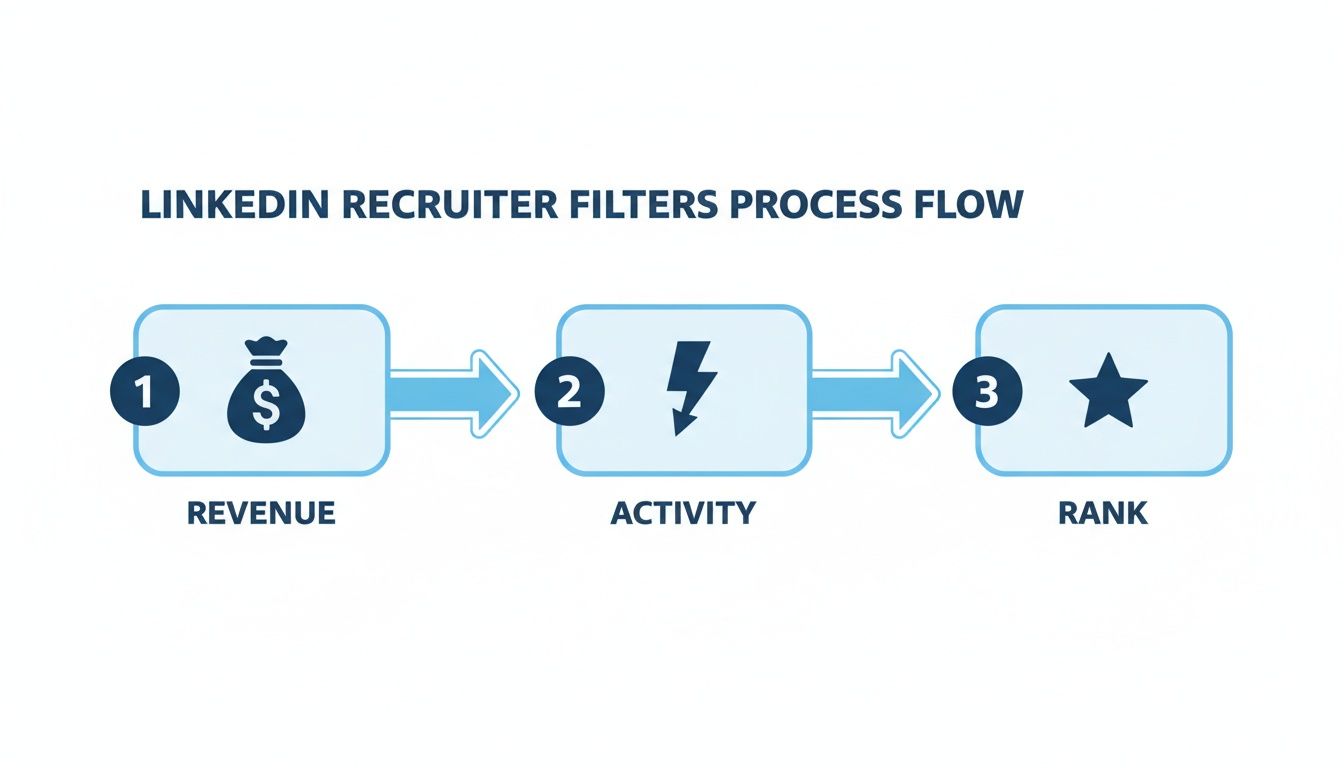
A seamless CRM import today saves untold hours of cleanup tomorrow.
Case Study And Key Outcomes
One marketing team I work with hit a groove by automating these steps. They doubled their weekly outreach and saw reply rates climb by 30%. Here’s what happened:
- 200 net-new matches imported every week, fully tagged and ready for outreach.
- Between 2020 and 2025, LinkedIn’s revenue soared to about $17.8 billion, with U.S. ad spend topping $5.54 billion.
- 61 million people search for jobs on LinkedIn each week, and video views jumped 36%, underlining the value of intent-based targeting.
Learn more about these insights on LinkedIn stats
Syncing And Data Hygiene
Even the best setup degrades without maintenance. Here’s how to keep your pipeline fresh:
- Use Zapier or native CRM connectors for hourly syncs of new contacts.
- Apply search-criteria tags in real time so segments stay precise.
- Let incremental imports and dedupe checks handle duplicates automatically.
- Schedule a monthly audit to purge stale records and refresh data with enrichment tools.
Implement field-level timestamps to flag aging leads, then trigger re-engagement when activity spikes. After 90 days of silence, archive inactive entries to keep dashboards uncluttered.
Monitor conversion funnels every morning to catch pipeline bottlenecks early. For deeper tips on aligning workflows with outreach strategies, check out our guide on sales enablement best practices.
Bringing advanced search directly into CRM workflows turns static lists into a living, breathing source of pipeline growth.
Best Practices For B2B Prospecting On LinkedIn
Moving beyond scattershot outreach means pinpointing the people who matter. One SaaS team we worked with saw their meeting rate climb by 20% in just a month by tightening their search filters and refining their messages.
Writing Connection Requests
Opening lines that feel personal get noticed. A quick nod to a shared interest or mutual contact makes all the difference.
I once mentioned a prospect’s piece on leadership—and responses doubled. Short, relevant notes beat generic intros every time.
- Reference a mutual group or connection to break the ice
- Share a one-sentence insight or resource they’ll value
- Keep messages under 300 characters for easy mobile reading
- End with a simple question that invites a reply
Timing matters. If there’s no response after 5–7 days, send a brief follow-up. One senior executive I advised saw positive replies double just by spacing follow-ups strategically.
Crafting InMail That Converts
InMail shines when it’s concise and relevant. Lead with a clear benefit tied to your prospect’s priorities.
- Start your subject line with their company name for instant recognition
- Follow with a two-line intro before diving into your ask
- Close with a yes/no call to action
Focused InMail campaigns often boost response rates by 15% or more.
Mini-campaigns around content engagement add social proof. Encourage prospects to comment or share your articles before you pitch.
Managing Outreach Cadence
A steady drumbeat of touchpoints keeps your pipeline alive without overwhelming prospects. I map daily, weekly, and monthly tasks in a simple spreadsheet:
- Daily: Review new saved search alerts and send connection requests
- Weekly: Engage with prospect posts and refine filters based on feedback
- Monthly: Audit saved searches, refresh keywords, and archive inactive leads
This routine fills your pipeline methodically and keeps chaos at bay.
Tracking Signal Events
Every profile view, like, or comment is an invitation. Act on these signals within 24 hours:
- Profile View: Send a quick thank-you message
- Post Like: Mention their comment on a relevant article
- New Position: Congratulate them, then pivot to a value proposition
A mini-campaign triggered by these events lifted InMail open rates to 45%.
Real Campaign Snapshots
Here’s how one marketing team sharpened their focus mid-campaign:
- Week 1: Started with 400 prospects and shared a blog post; tracked profile likes
- Week 2: Sent personalized InMails to those who engaged
- Week 3: Followed up with product benefits and a demo link
By narrowing to 100 high-engagement leads, they boosted meetings by 20% in four weeks.
Outreach Consistency Checklist
Keep your pipeline humming with this rhythm:
- Daily Tasks: Saved search review, connection requests, signal follow-ups
- Weekly Tasks: Content engagement, filter tweaks, pruning low-activity leads
- Monthly Tasks: Deep audit, messaging refresh, archiving stale lists
A consistent cadence ensures you stay proactive, not reactive.
Measuring Outreach Performance
Track these metrics and let them guide your tweaks:
- Connection Rate: Percentage of requests accepted
- Reply Rate: Percentage of InMail responses
- Meeting Rate: Percentage of prospects booked
A weekly performance review makes hitting your targets non-negotiable.
You might be interested in our guide on How to Connect on LinkedIn to refine your first outreach steps.
With these practices and an advanced search strategy, you’ll keep your pipeline robust and your growth on track.
FAQ
The biggest questions for B2B teams usually revolve around filter ROI, result caps, alert timing, and picking the right LinkedIn tier. Let’s dive in.
Which Advanced Search Filters Yield the Best ROI?
When you target company size, industry, and seniority, your outreach gets almost surgical. Adding Spotlight filters like Open to Opportunities or Posted In My Network surfaces people more likely to reply. One mid-market sales team I know saw a 30% jump in responses just by layering seniority with headline keywords.
- Company Size narrows down budget ranges (e.g., 51–200 employees)
- Industry filters hone in on your verticals
- Seniority Levels lock in on decision-makers
Well-layered filters cut noise by up to 40%, improving response rates.
My tip: test each filter combo on small batches. Track link clicks and replies before scaling.
Workarounds For Result Caps
When result counts exceed LinkedIn’s limits, break them into thematic slices:
- Filter by Join Date windows (0–30 days, 31–60 days) for fresher leads
- Use
NOTexclusions (e.g.,NOT Manager) to carve out sub-groups - Add geography or company size filters to tighten lists
Ideal Alert Cadence
Alerts only work if you check them on a schedule that fits your outreach:
- Daily Alerts: catch brand-new profiles
- Weekly Digests: build your nurture pipeline
- Monthly Audits: clean out stale segments
Consistent alerts prevent missed opportunities.
Pro tip: give every saved search a clear tag and set quarterly reminders to revisit your filters.
Choosing The Right Search Tier
Your choice depends on volume and complexity:
- Free Search: up to 50 profiles per week
- Sales Navigator: unlocks 30+ filters, nested Boolean logic, CRM sync
- Recruiter: unlimited alerts, granular Spotlight filters, team workspace
Match your budget and goals before upgrading to avoid paying for unused features.
Discover a predictable pipeline with Growlancer. Visit Growlancer to learn more.