

If you're in B2B sales, a predictable pipeline isn't a luxury—it's everything. Forget random prospecting and chasing leads. The real engine behind consistent growth is building hyper-targeted prospect lists, and LinkedIn advanced search is where it all begins.
This isn't just about finding people. It's about creating a repeatable system that moves you from hoping for meetings to controlling your calendar.
The Blueprint for a Predictable Sales Pipeline
Let's be honest, the old way is dead. Mindless scrolling, sending generic connection requests, and working off low-quality lists is a recipe for burnout and missed quotas. A predictable revenue engine starts with a strategic, repeatable process, and LinkedIn’s search function is the first, non-negotiable step.
This is where you move from chasing leads to systematically attracting them. The core difference between free LinkedIn search and Sales Navigator is the level of precision you get. That precision is what separates the top-performing teams from everyone else.
We're going to reframe this entire process. I'm not here to just define filters for you. I’m showing you how to build the exact lists that fuel your entire go-to-market strategy, turning pipeline anxiety into pipeline control.
Shifting from Random to Systematic
A systematic approach means getting crystal clear on your ideal customer profile (ICP) and then using LinkedIn’s powerful filters to find only those people.
This shift is a game-changer for efficiency and team morale. Your reps stop wasting time on dead-end leads and spend their days in valuable conversations with people who can actually buy.
The goal? To build a prospect list so dialed-in that almost every single person on it is a perfect match for what you sell. That’s the foundation for building a sales pipeline you can actually count on.

This process takes a vague idea of a "target audience" and turns it into a concrete list of high-value prospects, ready for you to engage.
The Impact of Precision Targeting
Getting this right has a direct, measurable impact on your revenue. When sales teams dig into advanced filters—things like job title, company size, and Boolean operators—they create highly concentrated pools of prospects for every campaign.
That granularity cuts down qualification work immediately. We already know from research that LinkedIn messages get about double the engagement of cold email, with an average response rate of 10.3% versus email's 5.1%.
When you layer laser-focused targeting on top of that, reply rates climb even higher. I’ve seen teams reduce wasted outreach by 30-50% just by getting their initial search right. For more on this, check out the latest H1 2025 outreach benchmark report.
Investing the time to build filter-driven, Boolean-enhanced lists via Advanced Search is non-negotiable. It converts more of the right prospects into meetings, improves reply-to-meeting conversion ratios, and reduces your cost-per-meeting.
Choosing Your Toolkit: Free Search vs. Sales Navigator
Alright, let’s get down to brass tacks. The real question isn’t just about what filters exist, but what you can actually do with them. When you’re staring down the barrel of building a pipeline, the choice between LinkedIn's free search and the beast that is Sales Navigator boils down to one simple thing: precision at scale.
To make this crystal clear, let's walk through a real-world scenario. Let's say your ideal customer is a VP of Sales at a SaaS company with 50-200 employees, located anywhere in North America.
This is a classic, well-defined target for thousands of B2B teams. Let's see how each tool handles the job.
The Free LinkedIn Search Experience
With a free account, you’re working with a limited hand, but you can get part of the way there if you're willing to get scrappy. You've got the basics: filters for Connections, Location, and Current Company.
To track down our "VP of Sales," you'd punch that title into the search bar and filter for "People." Next, you’d apply the "North America" location filter. Simple enough.
But this is where you hit the wall. The real headaches start when you try to get specific about the company.
- Industry: You can try filtering for "Software Development" or "IT Services" as a stand-in for SaaS. The problem? It's a huge, messy net that drags in countless businesses you don't want.
- Company Size: This is the killer. The free search has zero filter for company headcount. You're left guessing based on company names or, worse, clicking into every single profile to check their company page. It's a soul-crushing time sink.
- Seniority: There's no "Seniority" filter either. You get a raw dump of everyone with "VP of Sales" in their title—from folks at massive enterprise companies to one-person startups, all way outside your 50-200 employee sweet spot.
What you end up with is a noisy, bloated list that requires hours of manual vetting. You might find a few gems, sure, but it’s a totally inefficient way to build a predictable pipeline.
The Sales Navigator Advantage
Switching to Sales Navigator is like trading a flashlight for stadium floodlights. The difference is night and day.
Let’s run our exact same ICP through it: VP of Sales, SaaS, 50-200 employees, North America. Now, we have a whole new set of tools designed for exactly this purpose.
- Job Title: We pop in "VP of Sales" just like before.
- Company Headcount: This is the game-changer. We can select the 51-200 employees range, instantly wiping out every company that’s too big or too small.
- Industry: Sales Nav has way more specific industry categories. We can select "Software as a Service (SaaS)" and get exactly what we want.
- Seniority Level: We can specifically target the "VP" level, making sure we’re talking to actual decision-makers and not junior roles with inflated titles.
- Geography: The location filter works perfectly, just as you'd expect.
In a matter of seconds, Sales Navigator serves up a clean, hyper-targeted list of prospects who are a perfect match. The manual work is gone. The list is ready for outreach.
The real value of Sales Navigator isn't just having more filters; it's the mountains of wasted time it eliminates. It automates the grunt work of qualification, freeing up your team to spend their time actually talking to people, not digging through profiles.
The feature differences are stark when laid out side-by-side.
Free Search vs Sales Navigator Feature Breakdown
| Feature/Filter | Free LinkedIn | Sales Navigator | Strategic Value for B2B Teams |
|---|---|---|---|
| Company Headcount | ❌ Not available | ✅ Yes (e.g., 51-200) | Crucial. Instantly qualifies accounts based on size, preventing wasted outreach to companies that are too large or small. |
| Seniority Level | ❌ Not available | ✅ Yes (e.g., VP, Director) | Essential. Isolates decision-makers from individual contributors, ensuring messages reach the right people. |
| Years of Experience | ❌ Not available | ✅ Yes | Narrows down to seasoned professionals or rising stars, depending on your target. |
| Company Type | ❌ Not available | ✅ Yes (e.g., Public, Private) | Refines targeting for strategies specific to company structure. |
| Function/Department | ❌ Not available | ✅ Yes (e.g., Sales, Marketing) | Finds the right department even when titles are ambiguous. |
| Technology Used | ❌ Not available | ✅ Yes (e.g., HubSpot, Salesforce) | Game-changing. Allows you to target companies based on their tech stack for integration or competitive plays. |
| Recent Job Changes | ❌ Not available | ✅ Yes (in the last 90 days) | Identifies buyers who are new in their role and often have the budget and mandate for change. |
| Lead & Account Lists | ❌ Not available | ✅ Yes (up to 10,000 leads) | Creates organized, actionable prospect lists that can be used for targeted campaigns. |
| Commercial Use Limit | ✅ Yes (monthly limit) | ❌ No | Unlocks unlimited searching, which is mandatory for any team doing consistent prospecting. |
This breakdown really tells the story. For serious B2B prospecting, the free tool just doesn't have the horsepower.
Why This Matters for B2B Teams
Looking at this comparison, it's easy to see why B2B teams serious about growth see Sales Navigator as a non-negotiable part of their budget. It's not a luxury; it's a core tool for driving efficient pipeline.
This level of precision directly feeds into another critical trend: the blending of search and content. Data consistently shows a massive shift toward content-led demand, especially with video. Between 2023 and 2025, LinkedIn video viewership shot up, with video posts earning significantly more engagement than text alone. When you use a precise linkedin advanced search to find the right people, they are far more likely to engage positively if they’ve already seen your executive’s content.
This synergy—finding the right people and warming them up with content—can boost reply rates on warm messages by an estimated 15–30% over pure cold outreach. You can get more insights on the latest LinkedIn trends over at Learning Revolution.
At the end of the day, it's simple. Free search is for casual networking. Sales Navigator is for building revenue. If your goal is to create a scalable, predictable sales machine, the choice is obvious. The precision it provides is the bedrock of every successful modern outreach strategy.
Mastering Boolean Logic for Pinpoint Accuracy
If filters are the engine of your LinkedIn advanced search, then Boolean logic is the high-octane fuel. Honestly, mastering it is what separates the prospecting amateurs from the pros who pull perfect-fit leads every single time.
This isn’t some abstract computer science lesson. This is about crafting search queries so precise they feel like magic, cutting through the millions of profiles to hand you a clean, curated list of your ideal prospects. It's how you find exactly who you’re looking for—and just as crucially, how you exclude everyone you’re not.
The Five Operators That Change Everything
Think of these as simple commands you give to LinkedIn. When you start combining them, you get an insane amount of control. Just remember one golden rule: the operators AND, OR, and NOT must be in uppercase, otherwise, LinkedIn will just ignore them.
Let’s walk through each one with real-world sales scenarios.
-
Quotation Marks "": This is for finding an exact phrase. If you just type VP of Sales, LinkedIn might pull up profiles with "VP" in the headline and "Sales" down in their experience. But when you search for "VP of Sales", you're telling it to only show you people with that exact, multi-word title. Simple, but powerful.
-
Parentheses (): Remember order of operations from math class? Same deal here. Parentheses let you group terms together, telling LinkedIn to solve what's inside the brackets first before moving on. This is absolutely essential for building more complex, layered searches.
-
AND: This one narrows your search down. It demands that both terms you list appear somewhere in the profile. A search for Marketing AND Director will only return people who have both of those keywords.
-
OR: The opposite of AND, this operator broadens your search. It’s perfect when your ideal prospect could have a few different common titles. A search for CMO OR "VP of Marketing" will find people who identify as either one, instantly doubling your relevant pool.
-
NOT: My personal favorite for cleaning up messy search results. This operator excludes anyone with a specific keyword in their profile. A quick search for Director NOT Assistant instantly filters out a ton of irrelevant contacts, saving you from manually weeding them out later.
Putting It All Together: From Theory to a Qualified List
Knowing the individual operators is one thing. The real power comes from stringing them together to solve a specific prospecting challenge. Let’s get practical.
Imagine you're selling a new SaaS tool to senior finance leaders. Your sweet spot is in the tech industry, and you need to avoid junior staff or anyone working in the public sector. A basic search would give you a list you'd spend hours cleaning up. A Boolean search gets you there in seconds.
Here’s the exact string I’d use:
("Chief Financial Officer" OR CFO OR "VP of Finance") AND (SaaS OR Technology) NOT (Government OR "Public Sector" OR Intern OR Assistant)
Let's break down why this is so effective.
- ("Chief Financial Officer" OR CFO OR "VP of Finance"): We start by grouping all the relevant senior titles inside parentheses. The OR command tells LinkedIn to find profiles that have any of these variations.
- AND (SaaS OR Technology): Next, we use AND to layer on our industry focus. Now, a prospect must have one of those finance titles and also work in either SaaS or Technology.
- NOT (Government OR "Public Sector" OR Intern OR Assistant): This is the final polish. The NOT operator acts as a bouncer, kicking out anyone from the wrong sector or with junior-level keywords in their profile.
That one string just saved you hours of manual vetting. It turns a vague idea ("I want to find finance leaders") into a hyper-targeted, outreach-ready list.
Advanced Scenarios and Combinations
Once you get the hang of this, you can get really creative with your LinkedIn advanced search strings to solve some tricky business problems.
Scenario 1: Finding Niche Decision-Makers
Let's say you sell compliance software for the medical device industry. You need to connect with Quality Assurance leaders, but you keep getting results for people in manufacturing roles with similar titles.
- Search String:
("Head of Quality" OR "Director of QA") AND ("Medical Device" OR Medtech) NOT (Manufacturing OR Production)
This query nails the seniority and department, lasers in on your niche industry, and—most importantly—weeds out the operational roles that were muddying your results.
Scenario 2: Targeting Growth Signals
Your product is a perfect fit for tech companies that are scaling fast. You can actually use Boolean logic to find people at companies that are actively hiring for key roles, which is a massive buying signal.
- Search String:
("VP of Engineering" OR CTO) AND (Hiring OR "We're Hiring" OR "Join our team")
This is a clever hack. You're searching for your target decision-makers at companies where they've literally put "Hiring" in their profile's About section. These are leaders with a budget and an urgent need to build out their teams and tech stack.
Pro Tip: When you're building a complex Boolean string, test it in stages. Start broad with a title search like
"VP of Sales". Then, add yourANDoperator and check the results. Finally, layer in yourNOTexclusions. This way, you can see how each piece of the puzzle changes the outcome and easily spot if something isn't working right.
I'm not exaggerating when I say that mastering these commands is the single fastest way to level up your prospecting on LinkedIn. It transforms the platform from a noisy directory into a precision-guided tool for building a pipeline of perfect-fit customers.
For a quick reference you can bookmark, I've put the essentials into a cheat sheet.
Boolean Operator Cheat Sheet for Prospecting
This simple table is your go-to guide for crafting powerful search strings. Keep it handy, and you'll be building highly targeted prospect lists in no time.
| Operator | Purpose | Example Search String |
|---|---|---|
| Quotes "" | Searches for an exact phrase. | "Vice President of Marketing" |
| Parentheses () | Groups multiple terms to control search order. | (CEO OR Founder OR President) |
| AND | Narrows results to include all specified terms. | Sales AND "Account Executive" |
| OR | Broadens results to include at least one of the terms. | CMO OR "Chief Marketing Officer" |
| NOT | Excludes specific terms from the search results. | Director NOT Assistant |
Practice combining these operators, and you'll quickly see a massive improvement in the quality of your search results and, ultimately, the effectiveness of your outreach.
From Search Results to Actionable Prospect Lists
So you’ve run a pinpoint-accurate search and found a goldmine of ideal prospects. Huge win, right? Well, sort of. That's only half the battle. A raw list of names is just potential; the real money is in turning that list into a living, breathing asset you can use for outreach. This is where you graduate from research to revenue.
The biggest mistake I see teams make? They treat a search as a one-and-done task. They pull a list, hammer it for a few weeks, and then start from scratch. There's a much smarter way: building dynamic lists that constantly feed you new opportunities with almost zero extra effort.
The foundation for these powerful lists starts with your search query itself. It all comes down to mastering Boolean operators.
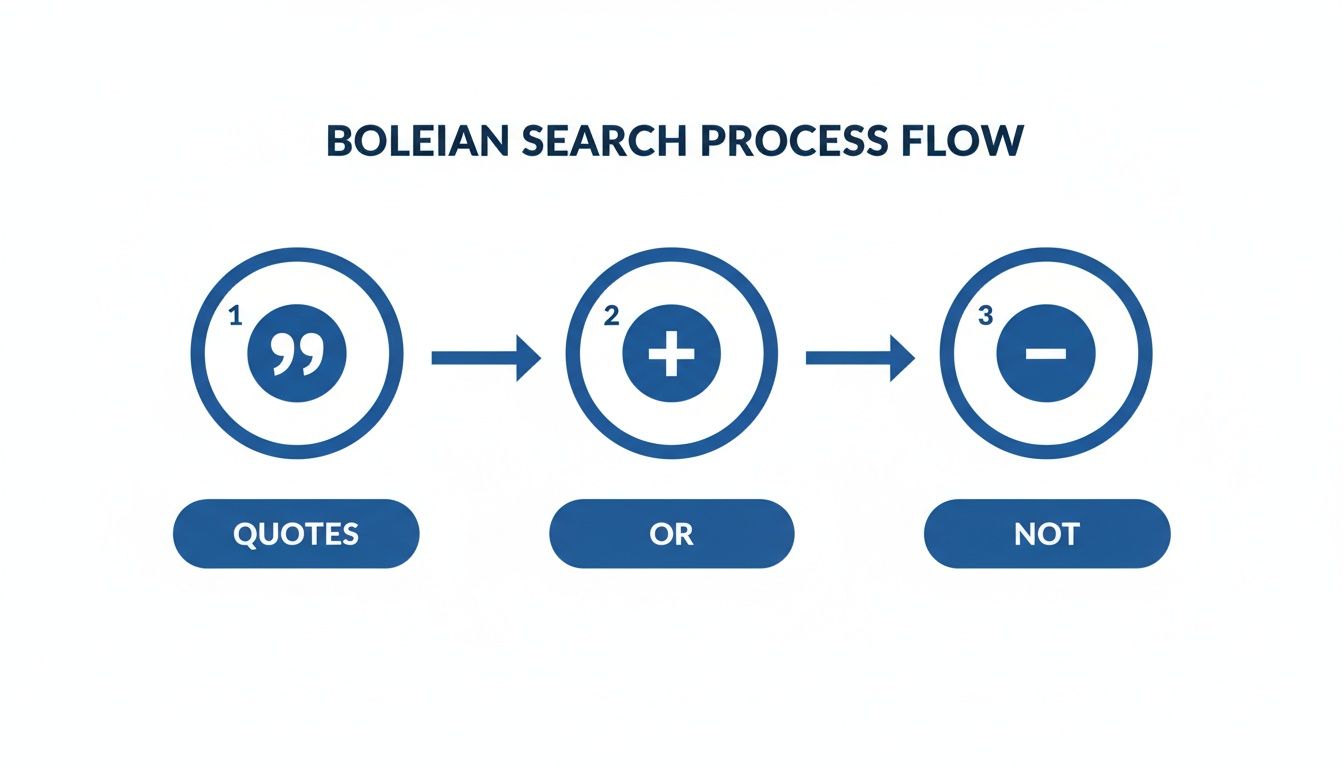
Get these right, and you'll build clean, hyper-relevant prospect lists from the get-go.
Create Dynamic Lists with Saved Searches
If you're using Sales Navigator, the 'Save search' feature is about to become your best friend for automating your pipeline. Forget about manually re-running your complex Boolean strings every Monday morning. Save them once, and let LinkedIn do the heavy lifting for you.
When you save a search, you're not just saving a query—you're creating an active monitoring system. LinkedIn will keep an eye out for new people who fit your exact criteria. Did a new VP of Marketing just start at a target account? Did a founder in your niche just update their profile? You'll get an alert. Your prospecting just went from an active hunt to a passive intelligence feed.
I tell my clients to create a saved search for each of their core Ideal Customer Profiles (ICPs). For instance:
- ICP 1: VPs of Sales at SaaS companies (51-200 employees) in North America.
- ICP 2: Founders of Fintech startups (11-50 employees) in Europe.
- ICP 3: Heads of HR at Manufacturing companies (201-500 employees) who recently posted on LinkedIn.
Suddenly, your Sales Nav account is an automated lead gen machine, constantly surfacing fresh, qualified prospects.
Segment and Conquer with Lead Lists
Okay, you have your search results. Don't just dump them all into one massive, messy bucket. The next play is to segment them into targeted 'Lead Lists' inside Sales Navigator. This is the secret to personalizing your outreach without spending all day on it.
You can slice and dice your lists based on whatever criteria makes sense for your campaigns:
- By Industry: Group all FinTech prospects in one list, HealthTech in another.
- By Seniority: Keep your C-level targets separate from your VPs and Directors.
- By Buying Signal: Did your search find people talking about "hiring" or "scaling"? Put them in a "Growth Signal" list so you can hit them with a super-relevant message.
This kind of organization means you can tailor your messaging and content, and your response rates will thank you for it. A message that speaks to a specific industry challenge will always crush a generic, one-size-fits-all pitch.
A well-segmented list is the foundation of effective outreach. It allows you to speak directly to a prospect's specific world, demonstrating that you've done your homework and understand their context.
Qualify Prospects Before You Reach Out
With your prospects neatly organized, there's one last sanity check before you hit "send." This isn't about re-confirming their title or company size. It's about finding an "in"—an engagement trigger that makes your outreach feel timely and personal.
Before you add someone to a campaign, take 30 seconds to scan their profile for:
- Recent Activity: Have they posted, commented, or shared something in the last week? Engaging with that is the perfect, non-creepy icebreaker.
- Shared Connections or Groups: Mentioning a mutual connection or a group you're both in builds instant credibility.
- Profile Keywords: Look for specific words in their "About" section that mirror the pain points you solve.
This final check ensures your outreach is never truly "cold."
When you combine this list-building discipline with a solid outreach plan, the results become predictable. Campaigns targeting 600–1,000 highly filtered prospects a month with sequenced messages can hit 20–40% connection acceptance rates and 8–15% reply rates. If you convert 15–30% of those replies to meetings, a single person can reliably generate around 30 qualified meetings per month. After all, knowing how to connect on LinkedIn is about more than just clicking a button; it's about having a system.
Turning Search Into a Winning GTM Strategy
Let's be honest. A perfectly built prospect list from a LinkedIn advanced search is great, but it’s completely useless if you don't have a solid plan to actually talk to those people. Finding your ideal customer is just step one. The real goal is building a predictable way to get meetings in the calendar.
This is where you stop just using a tool and start building a real system. A well-run search isn't just a list—it's raw market intelligence you can act on.
Let Search Insights Fuel Your Content
The data you pull from your searches is absolute gold for your content team. Seriously. Look for the patterns. What job titles keep popping up? Which industries dominate your results?
These aren't just data points; they're direct instructions for what your company should be talking about.
If your search for "Head of Product" keeps pulling up people from FinTech, your content needs to be about the specific product headaches that FinTech leaders face. When you do this, your company's LinkedIn page stops being a brochure and starts being a magnet for the exact people you want to sell to.
Imagine this: a prospect on your target list sees your CEO post an article that nails a problem they were just talking about with their team. Your outreach a week later won’t feel cold. It'll feel relevant.
Build a Multi-Channel Outreach Engine
That beautiful list of prospects you built is the fuel. Now you need an engine. The goal isn't to just spam everyone with a generic connection request. That's a rookie move. Instead, use that list to orchestrate a smart, multi-channel approach.
- LinkedIn Connection: Start here, but make it personal. Reference a shared group, a post they recently commented on, or a mutual connection you found when you were digging in.
- Email Follow-up: For the big fish, find their corporate email and send a follow-up. Don't be creepy, but be persistent.
- Content Engagement: This is the secret sauce. Before you even think about connecting, go engage with their posts. A smart, thoughtful comment on something they wrote is one of the best ways to get on their radar.
This multi-touch rhythm massively increases your odds of getting a reply. It cuts through the automated noise and shows you've actually done your homework.
A great list deserves a great outreach strategy. Don't waste a high-quality prospect list on a low-quality, one-dimensional outreach campaign. The system around the list is what generates revenue.
Tying Sales and Marketing Together
What we're really talking about here is getting sales and marketing to finally work together. The search process, usually run by sales, gives marketing direct, real-time feedback on who the ideal customer actually is and what they care about right now.
Marketing takes those insights and creates content that speaks directly to that audience, warming them up before sales even makes the first move.
When both teams are reading from the same script, the results multiply. Sales sees higher connection and reply rates. Marketing sees their content actually getting engaged with by the right people. It's a powerful feedback loop. You can see more on how this works in our guide to sales and marketing alignment best practices.
From List Building to System Building
At the end of the day, getting good at LinkedIn advanced search isn't about becoming a world-class name-finder. It's about building a repeatable system that turns those names into real conversations and closed deals.
Think of it like this:
- Precise Search: Finds a pool of high-quality prospects.
- Insight-Driven Content: Warms that pool up with genuine expertise.
- Multi-Channel Outreach: Engages those prospects personally and persistently.
When these three pieces are working together, you're no longer just chasing leads. You're running a GTM machine. Your team knows who to target, what to say, and how to say it. That's how you scale.
Got Questions About LinkedIn Search? We’ve Got Answers.
Even the sharpest B2B teams hit a wall with LinkedIn's search functions. Over the years, we've heard the same questions come up time and time again from people trying to build a solid pipeline.
So, here are some straight answers to the most common snags. Think of this less as a technical manual and more as practical advice from the trenches—whether you're on the free plan or running full-tilt with Sales Navigator.
How Many Search Results Can I Actually See on a Free Account?
This one trips up everyone. It's probably the most frustrating part of using the free version of LinkedIn for prospecting.
With a standard, free LinkedIn account, you can only see the first 1,000 profiles for any given search.
That’s it. Even if your search turns up 50,000 perfect-fit prospects, you’re capped at 100 pages. Everyone past that 1,000-person wall is completely invisible. This "commercial use limit" is precisely why serious B2B operators upgrade to Sales Navigator. It removes the cap and lets you see your entire addressable market.
Can I Export My LinkedIn Search Results?
Short answer: Nope. LinkedIn doesn't have a built-in "export to CSV" button for your search results or Sales Nav lead lists.
It's a deliberate move on their part to protect user data and stop people from scraping the platform en masse. They want you prospecting inside the LinkedIn ecosystem. To get that data into an external CRM, you’ll either need an approved third-party tool or, for your highest-value leads, some good old-fashioned manual data entry.
What Are the Most Common Boolean Search Mistakes?
Boolean is the secret sauce for a powerful linkedin advanced search, but tiny mistakes can throw your entire list off. From what we've seen, it almost always comes down to these three slip-ups:
- Forgetting to SHOUT: The operators AND, OR, and NOT have to be in all caps. If you type
sales and marketing, LinkedIn just sees "and" as another keyword, not a command. - Messing up the order: Parentheses are your best friend for complex searches.
(VP OR Director) AND Salesworks exactly as intended. ButVP OR Director AND Salesjust confuses the system because it doesn't know what to prioritize. - Getting too aggressive with NOT: The
NOToperator is great for cleaning up irrelevant results, but it’s easy to go too far. For example, filteringNOT Assistantcould accidentally remove an "Executive Assistant to the CEO"—who might be the exact gatekeeper you need to win over.
Get these basics right, and you'll immediately see more accurate results. Always double-check your caps and make sure you're using parentheses to group terms together. It makes all the difference.
How Often Should I Check My Saved Searches?
Here’s the thing about a "Saved Search" in Sales Navigator—it's not a static report. It's a living, breathing feed of new opportunities.
We tell our clients to check their most important saved searches at least once a week.
This simple habit lets you catch fresh prospects the moment they step into a new role that fits your ideal customer profile. It flips your prospecting from a one-off task into an active system for generating pipeline. You’ll be the first person reaching out, not the tenth.
Ready to turn these advanced search techniques into a predictable pipeline of qualified meetings? Growlancer builds and manages your entire LinkedIn GTM strategy, from authority content to targeted outreach, so your leadership team can focus on closing deals. Build your revenue engine with us.